
Prerequisites
Grandstream now allows public download of documentation and software at:
http://www.grandstream.com/firmware.html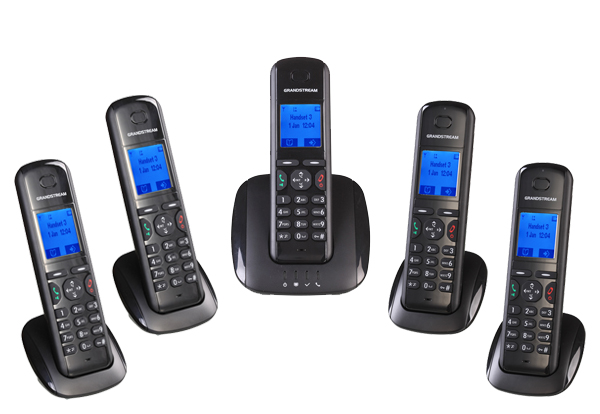
Step 1: Gather information for each user
Each user has a set of credentials which will be needed to configure the handset. For each handset that you are configuring, obtain the following:
- "SIP Address" (Address of Record)
- "SIP Password"
- "Auth Username"
- "Username"
- "Proxy/Domain"
You can find this information in app.onsip.com under the Administrator tab, Users on the left, click on the User's name the device will be configured to expand the options, then choose the Phone Settings tab.
Step 2: Log into your Grandstream through a web browser
When your phone is powered on and connected to your LAN, use a browser to navigate to the IP address of your phone. To locate the IP address of your phone, hit *** on the handset and then 02 when prompted for a menu selection. The IP address will be read back to you. The default password is "admin". Once you've logged in, you should see a page with the following heading.
--------
Select "Profile1".

Step 3: Configure Your Device for OnSIP
You will need to simply configure "Profile1".
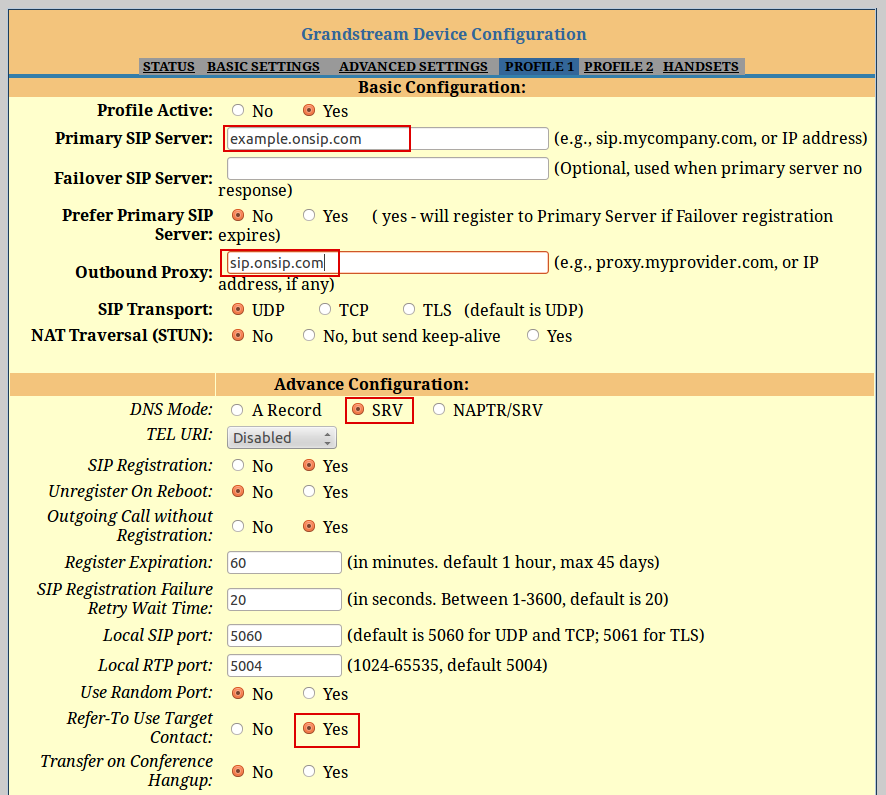
- Profile Active: Yes
- Primary SIP Server: "Domain"
- Outbound Proxy: "sip.onsip.com"
- DNS Mode: "SRV"
- Refer-To Use Target Contact: Yes
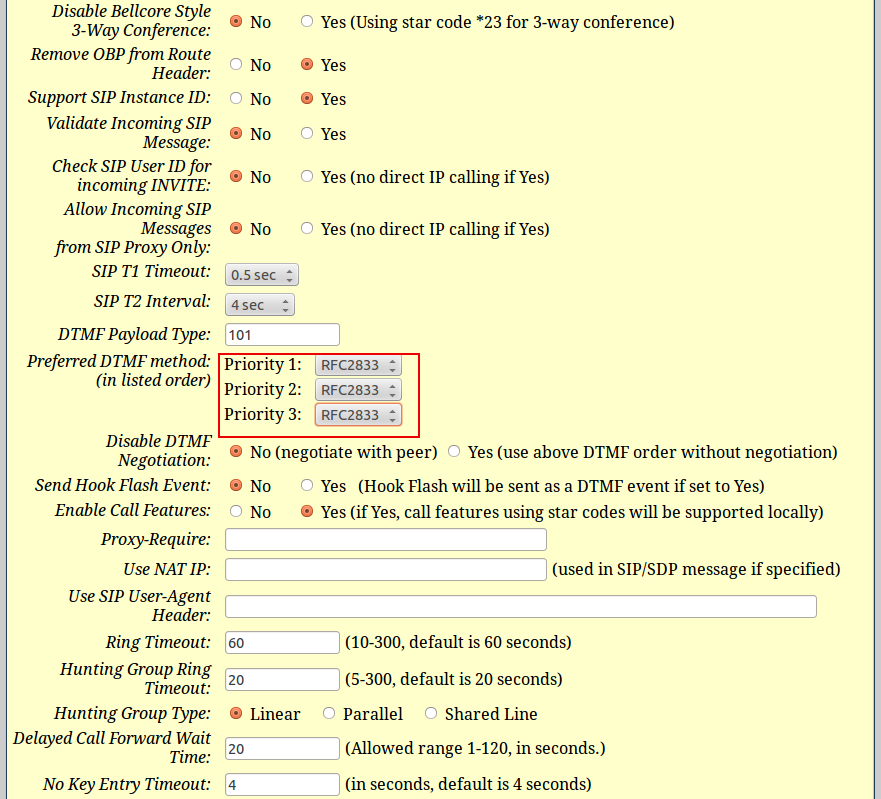
Step 4: Set Preferred DTMF Method
Scroll down until you can see this section and set accordingly
Step 5: Set your Codecs
Scroll down until you can see this section and set accordingly
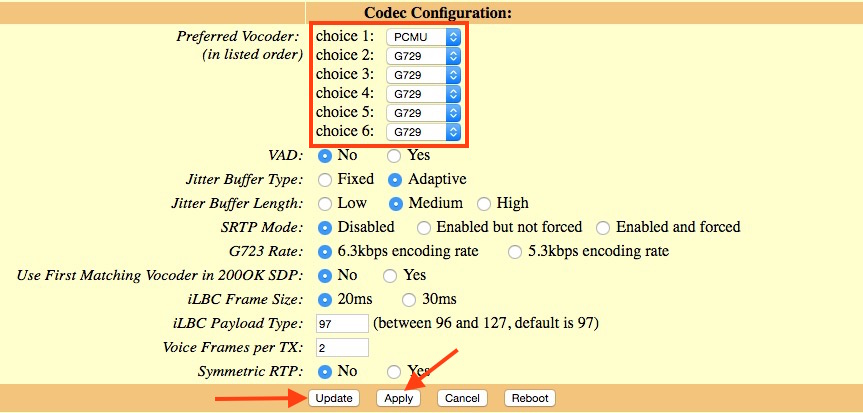
Click "Update" button, click "Apply" button and then go to "Handset" tab (top of your screen) - Scroll down until you can see this section and set accordingly
Step 6: Enter Your User Information from Step 1
You may configure up to 5 handsets (i.e. Users) per base station
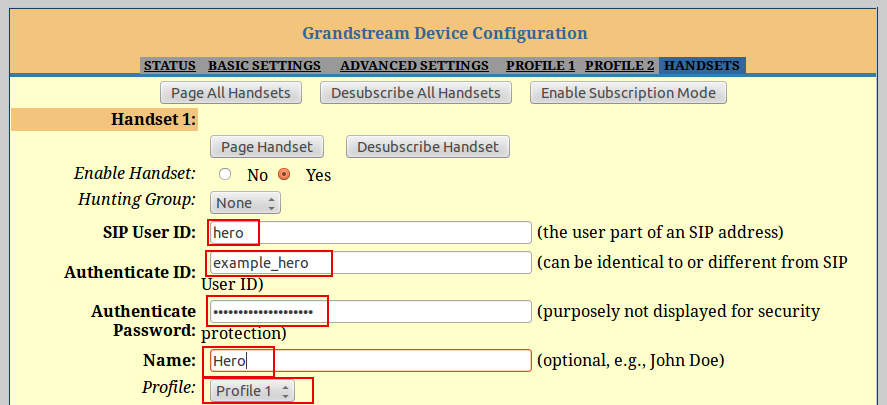
- SIP User ID: "Username"
- Authenticate ID: "Auth Username"
- Authenticate Password: "SIP Password"
- Name: Whatever you would like others to see when you call them
- Profile: Profile1
Click "Update" button, click "Apply" button and then "Reboot" button. Scroll down until you can see this section and set accordingly.
Troubleshooting
If you are experiencing trouble, double-check your settings as described above and be sure to verify that your password was entered correctly without any leading or trailing spaces.
Updated July 2016
See our top business VoIP phone recommendations

Comments