
November 2016
Step 1: Gather information for each user.
Each user has a set of credentials which will be needed to configure each phone. For each phone that you are configuring, obtain the following:
- SIP Address (Address of Record)
- SIP Password
- Auth Username
- Username
- Proxy/Domain
You can find this information in app.onsip.com under the Administrator tab, Users on the left, click on the User's name the device will be configured to expand the options, then choose the Phone Settings tab.
Step 2: Log into your AutoHybrid device through a web browser
When your phone is powered on and connected to your LAN, use a browser to navigate to the IP address of your phone. The IP address of your phone should automatically display on the screen. Once you've logged in select "Account 1".
Step 3. Enter your user information from Step 1.
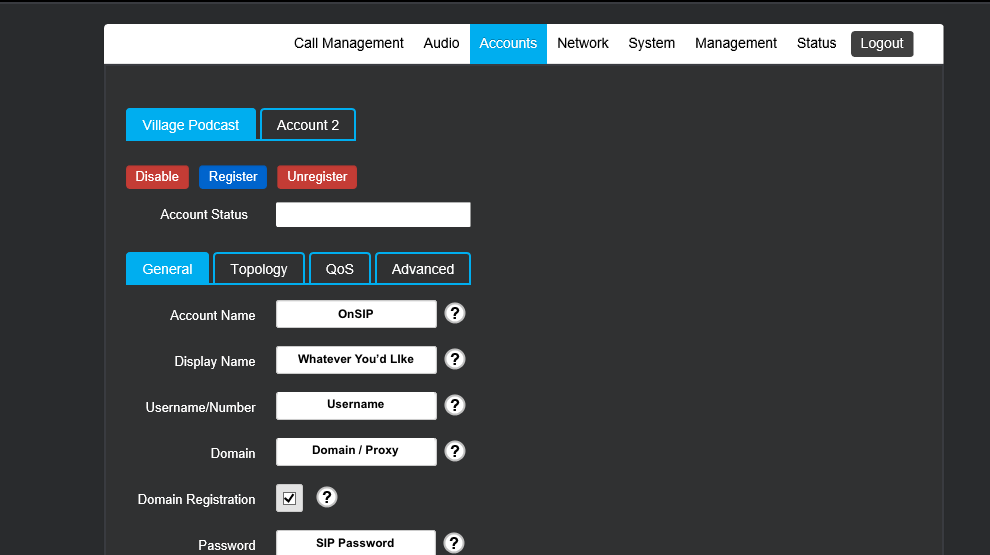
Select "General" tab
- Account Name: Whatever you would like (ie. OnSIP)
- Display Name: Whatever you'd like others to see when you call them
- Username / Number: Username
- Outbound Proxy: sip.onsip.com
- Domain: Domain
- Domain Registration: Make sure this is checked
- Password: SIP Password
Select "Advanced" tab
- Authenticate ID: Auth Username
- Proxy: sip.onsip.com
- Proxy Port: 5060
- Registration Lifetime: 3600
- Keep-Alive: Make sure this is checked
- Silence Suppression: This is unchecked
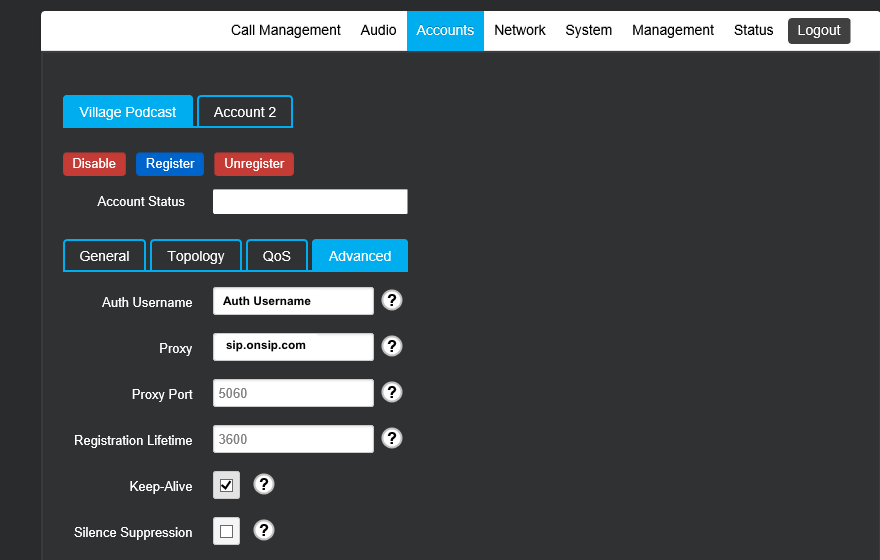
Select "Register" at top of page under Account 1
See our top business VoIP phone recommendations

Comments